
How to set up 2FA
When you log in to Heyloyalty for the first time, you need to set up 2-factor authentication.
To do this, you’ll need an authenticator app on your phone (such as Microsoft Authenticator or Google Authenticator).

After entering your email and password, you will see a QR code.
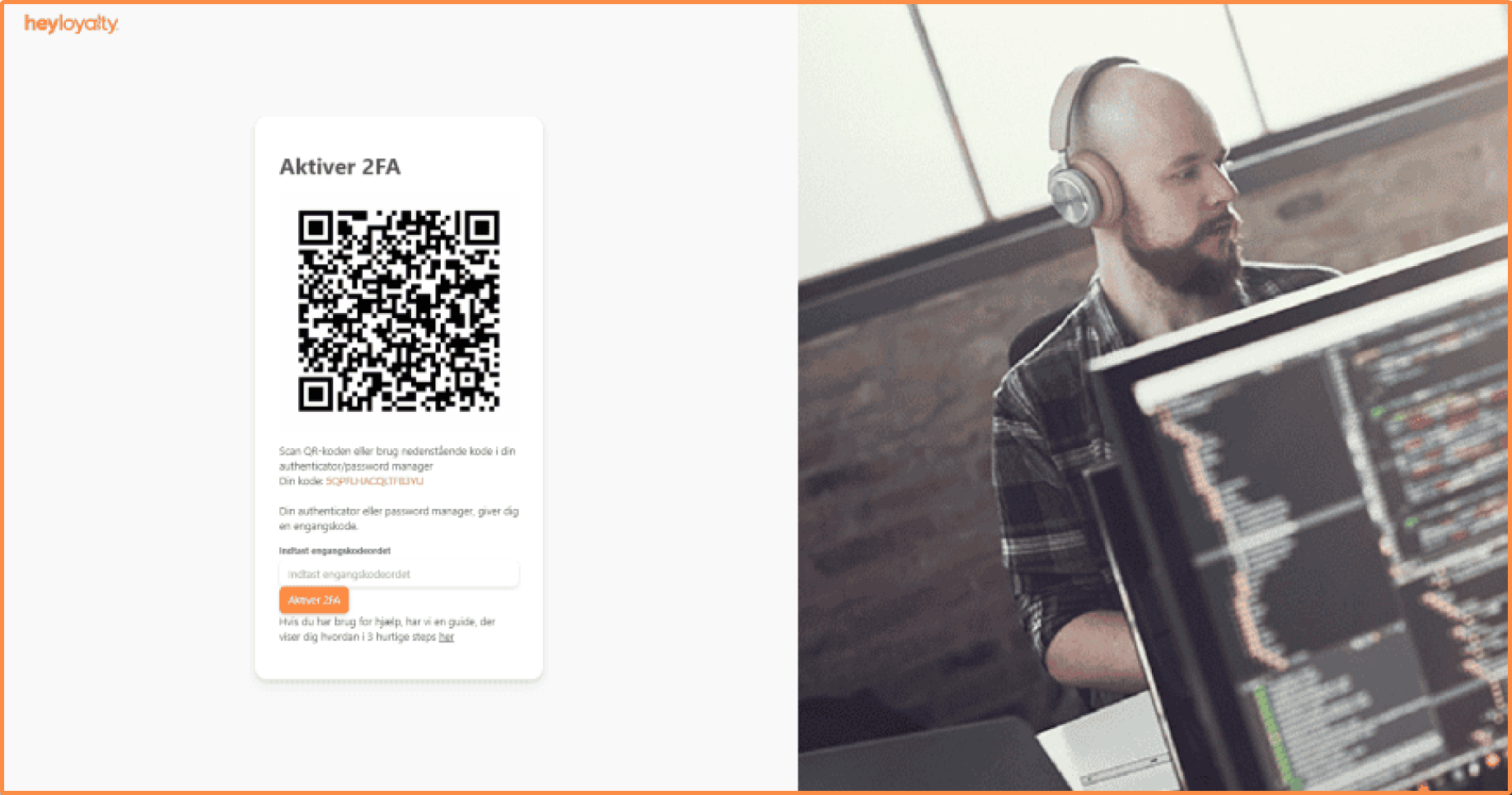
Scan the QR code with your authenticator app (e.g. Microsoft Authenticator or Google Authenticator).
If you cannot scan the QR code, type the code next to Your code into the app instead.
Enter the 6-digit code from the app on your phone in the Enter the code from your 2-factor app field, and click Activate 2FA.
You will now be taken back to the login page. Enter your email and password again. Then enter the new 6-digit code from the app in the Enter the code from your 2-factor app field, and click Log in.
You are now logged in.
Future logins with 2FA
From now on, every time you log in to your Heyloyalty account, you must:
- Enter your password and email address.
- Enter the current 6-digit code generated by your authenticator app.
This login method adds an extra layer of security to your Heyloyalty account when you log in. With two-factor authentication enabled, you can feel confident using the system to manage your contact information.
Reset 2FA for a user
If a colleague has a new phone or has deleted their authenticator app, they can no longer log in with a code from the app. As an admin, you can reset 2FA for the user, so they can set up 2FA again with a new QR code the next time they log in. The colleague is then back at work the same day, without anyone having to create a new user.
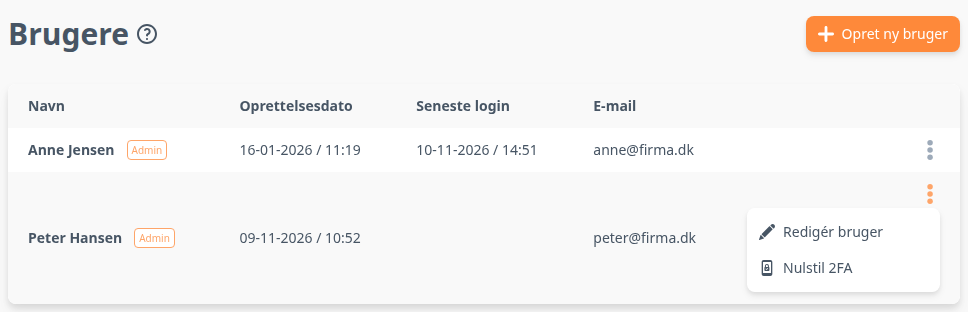
Click the user icon with the gear in the top right corner, and select User management. Click the three dots next to a user, and select Reset 2FA.
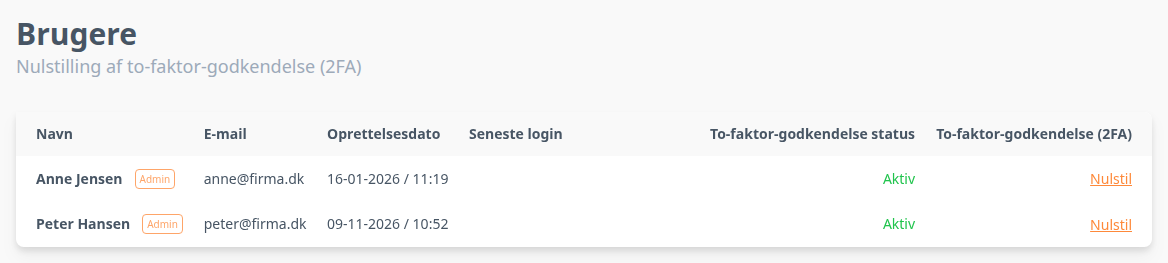
The Reset of two-factor-authentication (2FA) page lists all users on the account and their Two-factor-authentication status. Click Reset next to the user who needs to set up 2FA again. Reset is only shown for users whose status is Active.
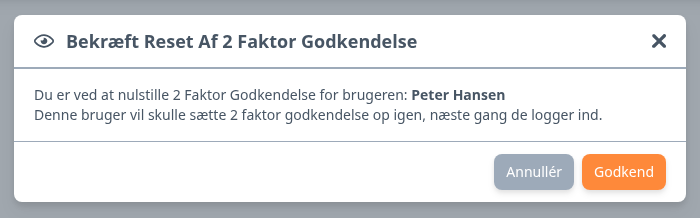
Click Approve in the confirmation box.
The top of the page now says “2FA is reset for the user”, and the user’s status is Not Active. The next time the user logs in, they must set up 2FA again, as described in How to set up 2FA. See how to create and edit users in Create a user and manage account users.

If you need information or help that you cannot find here on the guide site, you are always welcome to contact our support!
support@heyloyalty.com